
Basic Usage
The day-to-day operations you will use most.
Adding PDFs
- Drag and drop a PDF file onto the Desk.
- Or click the Add button and pick a file with the file picker.
- The same PDF can be added multiple times — each one becomes an independent card with its own annotations.
Selecting and rearranging cards on the Desk
- Drag a card to move it.
- Single-click to select a card (it gets a blue highlight). Double-click opens the Editor. Single-click does not open the Editor — this is intentional to prevent accidental navigation.
- Click an empty area or press Esc to clear the selection.
- Hold a card for half a second to "pick it up" — it floats to the top with a ghost preview.
Selecting multiple cards
Just like Windows Explorer:
- Ctrl+click (Cmd+click on Mac) toggles individual cards in and out of the selection.
- Drag a rectangle across empty space to box-select. A card is selected when its center falls inside the rectangle, so brushing an edge alone does not select it.
- Ctrl+A selects every card in the current view.
- Drag any one of the selected cards and the whole group moves together, keeping its relative layout.
- Right-click the selection to Merge, Move to folder, or Delete all of them at once. Switching folders clears the selection.
- Press Delete (or Backspace) to remove the selected cards. Unlike the right-click "Delete" command, no confirmation dialog is shown — use Ctrl+Z to restore them.
- Ctrl+C copies the selected cards to an in-app clipboard; Ctrl+V pastes duplicates into the current view (root or the selected folder). Switch folders before pasting to copy between folders. The clipboard does not reach the OS, so cards cannot be moved to other apps or browser tabs (it is cleared when you close the browser).
Filtering by file name
Once you have a lot of cards, use the search box in the Desk header to filter them by name.
- As you type, only the cards whose name matches stay visible in the current view (the root, or the folder you have open). Cards never move — the ones that do not match are just hidden, so clearing the search brings your layout back exactly as it was.
- Press Ctrl+F (Cmd+F on Mac) to jump to the search box. Press Esc, or click the × at the right of the box, to clear it.
- Separate several words with spaces to keep only the files that contain all of them (for example
contract 2026). - Matching ignores upper/lower case and full-width/half-width characters. The file extension (
.pdf) is not searched. - You can find files in other folders too. While a search is active, the numbers in the folder list on the left show how many matches are in that folder. Click a folder with matches and you jump straight to its results, with the search still applied.
- Arrange is disabled while a search is active, because arranging would also move the cards that are currently hidden. Clear the search first if you want to tidy the layout.
Organising with tags
A file lives in exactly one folder, but you can give it as many tags as you like, which makes tags a good fit for grouping that cuts across folders.
- Right-click a card and choose Tags. Existing tags are listed with a check mark; clicking one adds or removes it. Use New tag… to create one.
- Select several cards first, and the right-click menu applies to all of them at once.
- Tags appear as small chips under the file name on the card.
- Type
tag:contractin the search box to show only the cards carrying that tag. As soon as you typetag:, your existing tags appear as suggestions — pick one with Tab, Enter, or a click. - Tags combine with name terms (
tag:contract 2026means "tagged contract and named something containing 2026"), and with each other (tag:contract tag:urgent). - Tags match exactly (
tag:conwill not findcontract), whereas file names match partially. - Tags cannot contain spaces, because the search box uses spaces to separate conditions — a tag with a space in it could never be searched for.
- Adding and removing tags can be undone with Ctrl+Z.
Arranging cards into a grid
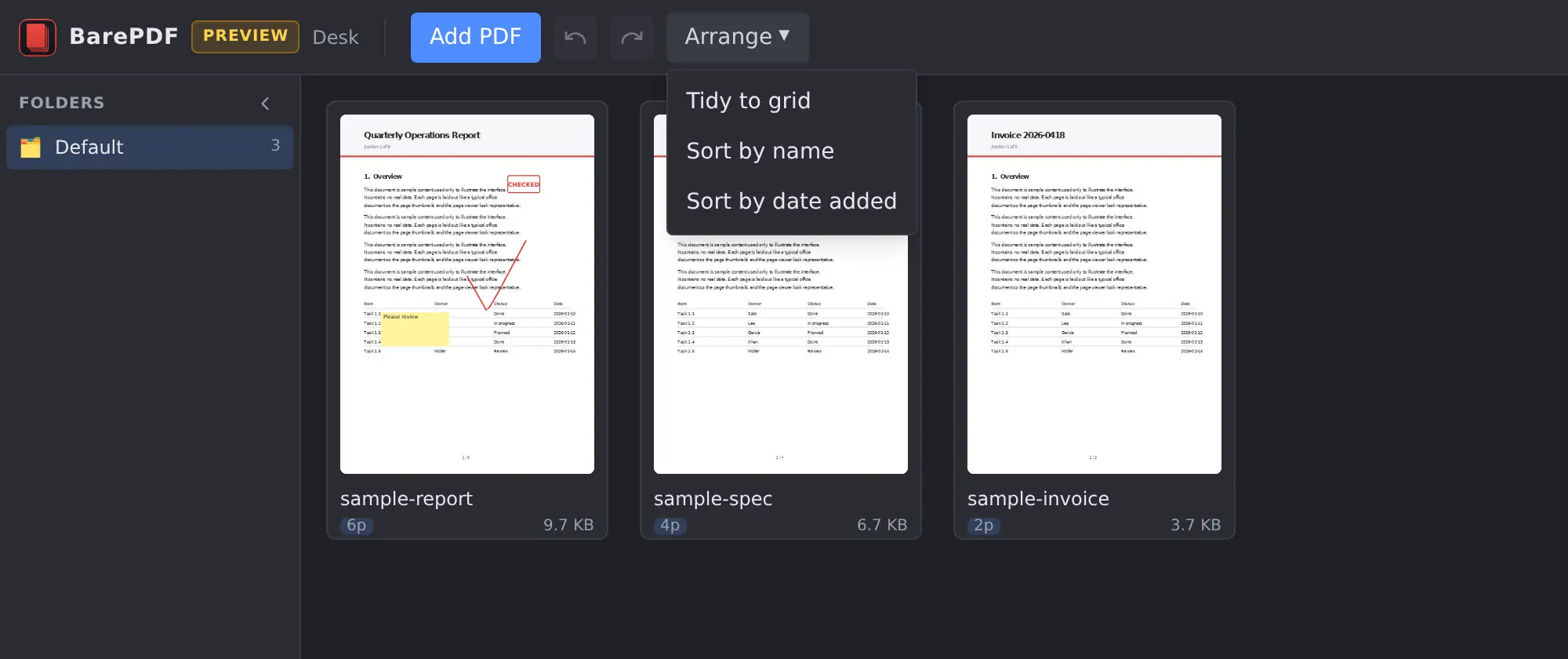
- Click Arrange in the Desk header to re-tile the cards into a tidy grid.
- Tidy to grid keeps the current order; Sort by name and Sort by date added reorder the cards first.
- Only the current view is affected — the root, or the folder you are viewing. Each folder keeps its own layout.
Renaming a file
- Select a card and press F2 to rename the file inline (just like Windows Explorer).
- You can also start a rename from the right-click menu → Rename.
- Press Enter or click outside the input to commit, press Esc to cancel.
Merging two PDFs
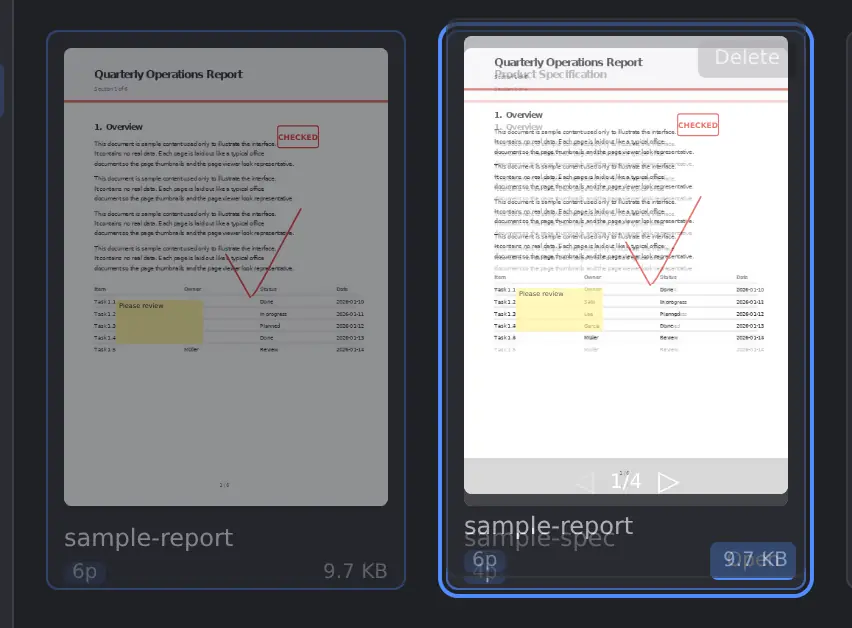
- Drag a card onto another card. They merge into a single new PDF.
- The drop target's name, position, and folder are kept.
- Hold Shift while dragging to skip merging and just place the cards together.
- To merge more than two PDFs, select several cards, right-click, and choose Merge. The card you right-clicked becomes the first document; the rest follow in reading order (top to bottom, left to right).
Splitting a PDF into pages
- Right-click a card → Split (ばらす) (no confirmation dialog — it runs immediately).
- Each page becomes its own card, placed in a cascading pattern. The first page sits on top and the last page at the bottom of the stack.
- Any annotations (ink, sticky notes, stamps) and rotation on a page are carried over to its card. If you reordered pages in the Editor, the split follows that order.
Rotating pages
- Right-click a card → Rotate (90° left, 90° right, 180°).
- Rotation is stored in a sidecar file. The PDF bytes are not modified, so thumbnail caches stay valid.
Folders
- The left sidebar shows folders. Drag a card into a folder to file it.
- Each folder remembers card positions independently.
- Drag the sidebar's right edge to resize it, or click the "‹" button next to the "Folders" label to collapse it.
Selecting and copying text
The Editor lets you select and copy the body text of a PDF. Switch to Select text (the I-beam icon) in the toolbar first.
- With the Select text tool active, drag across the text to select a range, then press Ctrl+C to copy it.
- The Select tool does not drag-select text. Select is the tool for picking annotations, and dragging from an empty spot does rubber-band annotation selection instead. Switch tools when you want to select text.
- Switching to another tool after selecting text clears the selection highlight automatically.
- PDFs with no text information (a scanned paper page stored as a plain image, for example) cannot be text-selected.
- Links — both in-document links such as a table of contents and external links — work on click under either the Select or Select text tool.
A note on CJK PDFs
In Japanese, Chinese, and Korean PDFs the selection highlight can sit a few pixels off from the glyphs. This is a display-side limitation — the fonts embedded in the PDF cannot be reconstructed exactly — and it does not affect the text you copy.
(Separately from this: if a PDF's internal character mapping table is broken, copied text can come out garbled. That happens in any PDF viewer, and has a different cause.)
Exporting
See Export.